Getting started with Zulip
Welcome to Zulip! This page guides you through getting started using Zulip. If you are setting up a new organization, you may also want to check out our guide for moving to Zulip.
You can learn where to find everything you need to get started with this 2-minute video tour. Mastering Zulip can take a bit of time, but once you get the hang of it, you’ll never want to use a different team chat app!
Set up your account
Section titled “Set up your accountâ€- Get the mobile and desktop apps. Zulip also works great in a browser.
- Add a profile picture and edit your profile information to tell others about yourself.
- Review your preferences. You can switch between light and dark theme, customize the font size, pick your favorite emoji theme, change your language, and make other tweaks to your Zulip experience.
- Browse and subscribe to channels.
- Decide whether you want Enter to send your message or add a new line.
- Configure your notifications to work the way you do. If you’re joining a low traffic organization and aren’t using the desktop app, consider sending all messages to email.
Learn about Zulip topics
Section titled “Learn about Zulip topicsâ€Zulip is designed around conversations that are labeled with topics, to make communication organized and efficient. It’s easy to get an overview of what conversations are happening, and to read one conversation at a time.
Here is what topics look like in Zulip.
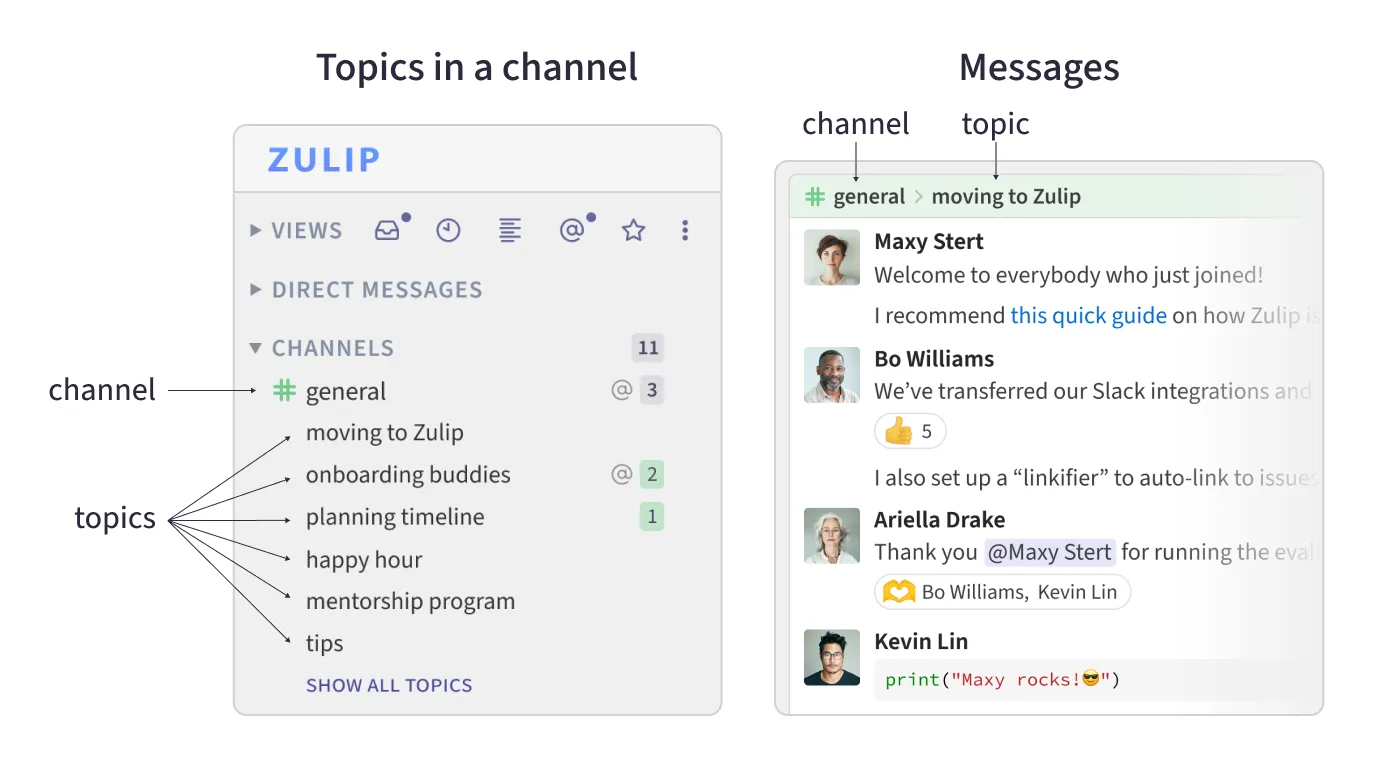
Topics are one of the most wonderful aspects of using Zulip:
- Lots of conversations can happen in the same channel at the same time, each in its own topic. You never have to worry about interrupting — each conversation has its own space.
- Conversations can last many hours or days, letting everyone respond in their own time. Don’t worry about replying long after a message is sent — everyone will see your reply in context.
Learn more about how Zulip’s topic model helps transform how your organization communicates.
Reading your messages
Section titled “Reading your messagesâ€In Zulip, a conversation is a direct message thread (one-on-one or with a group), or a topic in a channel.
It generally works best to read your messages organized by conversation.
Finding a conversation to read from the Inbox view
Inbox provides an overview of your conversations with unread messages. Conversations are shown in the same order as in the left sidebar in the web app, and you can collapse any channels you are not currently interested in.
- Click on Inbox (or if the views section is collapsed) in the left sidebar, or use the Shift + I keyboard shortcut.
- Click on a conversation you’re interested in to view it. You can return to your inbox when done (e.g., by using the back button in your browser or desktop app) to select the next conversation.
- Tap the inbox () tab in the bottom left corner of the app.
- Tap on a conversation you’re interested in to view it. You can return to your inbox when done (e.g., by using the back button) to select the next conversation.
Finding a conversation to read from Recent conversations
Use the recent conversations view to get an overview of all the ongoing conversations. This view is particularly useful for catching up on messages sent while you were away.
- Click on Recent conversations (or if the views section is collapsed) in the left sidebar, or use the T keyboard shortcut.
- The filters at the top help you quickly find relevant conversations. For example, select Participated to filter to the conversations you have sent messages to.
- Click on a topic or DM conversation you’re interested in to view it. You can return to recent conversations when done (e.g., by using the back button in your browser or desktop app) to select the next conversation.
Finding a conversation to read from the left sidebar
In the web app, the left sidebar provides quick access to your direct messages, and the channels you are subscribed to.
- Click on direct messages or the name of a channel in the left sidebar. You will see a list of the most recent unread conversations that you have not muted.
- Click on the conversation you are interested in.
Reading conversations
- Find a conversation to read.
- Read the conversation, scrolling down with the mouse or by pressing PgDn.
- If the conversation is not of interest, you can mark all messages as read by jumping to the bottom with the Scroll to bottom () button or the End shortcut.
Sending messages
Section titled “Sending messagesâ€When to start a new topic
Section titled “When to start a new topicâ€To get the full benefits of Zulip’s topic model, when starting a new conversation, you should start a new topic!
Starting a topic is like a lighter weight version of giving your email a subject. Topic names should be brief but specific, for example:
- Good topic names: “question about topicsâ€, “welcome Anna Smith!â€, “issue #1234â€
- Not so good topic names: “questionâ€, “hiâ€, “helpâ€, “this topic is about a question I have about topicsâ€
Don’t stress about making it perfect! The first 2-3 words that come to mind are probably fine, and you can always change it later.
With time, there will be lots of topics in your organization, which is just how it’s supposed to be. Zulip’s UI is designed to make it easy to see what’s new (in your inbox, recent conversations, and the left sidebar), while still helping you find prior discussions.
How to start a new topic
Section titled “How to start a new topicâ€- Click the start a new topic () button next to the name of the channel where you’d like to start a conversation.
- Enter a topic name. Think about finishing the sentence: “Hey, can we chat about… ?â€
- Click on the compose box, or press Tab to compose your message. You can preview your message before sending.
- Click the send () button, or use a keyboard shortcut to send your message.
- Click the Start new conversation button at the bottom of the app.
- (optional) You can change the destination channel for your message using the dropdown in the top left of the compose box. Start typing to filter channels.
- Enter a topic name. Think about finishing the sentence: “Hey, can we chat about… ?â€
- Click on the compose box, or press Tab to compose your message. You can preview your message before sending.
- Click the send () button, or use a keyboard shortcut to send your message.
- Tap the channels () tab at the bottom of the app.
- Tap on the desired channel.
- Tap the compose box at the bottom of the app.
- Enter a topic name. Auto-complete will provide suggestions for previously used topics.
- Compose your message, and tap the send () button in the bottom right corner of the app.
Starting a new direct message
Section titled “Starting a new direct messageâ€- Click the start a new DM () button next to the direct messages heading in the left sidebar, or the New direct message button at the bottom of the app.
- Start typing the name of the person or group you want to message, and select their name from the list of suggestions. You can continue adding as many message recipients as you like.
- Click on the compose box, or press Tab to compose your message. You can preview your message before sending.
- Click the send () button, or use a keyboard shortcut to send your message.
- Tap the direct messages () tab at the bottom of the app.
- Tap the New DM button.
- Start typing the name of the person you want to message, and select their name from the list of suggestions. You can continue adding as many message recipients as you like.
- Approve by tapping the Compose button in the top right corner of the app.
- Compose your message, and tap the send () button in the bottom right corner of the app.
Responding to an existing thread
Section titled “Responding to an existing threadâ€- Click the Message… button at the bottom of the app.
- Compose your message. You can preview your message before sending.
- Click the send () button, or use a keyboard shortcut to send your message.
- Tap the Message … text in the compose box at the bottom of the app.
- Compose your message, and tap the send () button in the bottom right corner of the app.
Messaging tips & tricks
Section titled “Messaging tips & tricksâ€- Learn all about message formatting.
- Use emoji reactions for lightweight interactions.
- Embed code blocks with syntax highlighting for over 250 languages, and integrated code playgrounds.
- Type LaTeX directly into your Zulip message, and see it beautifully rendered.
- Start a video call with the click of a button.
- Make plans for later without worrying about time zones using global times.
- Share files or images with drag-and-drop uploads.
- Enjoy animated GIFs with Zulip’s native GIPHY integration.
- Preview your message to make sure it looks just how you want it.