User list
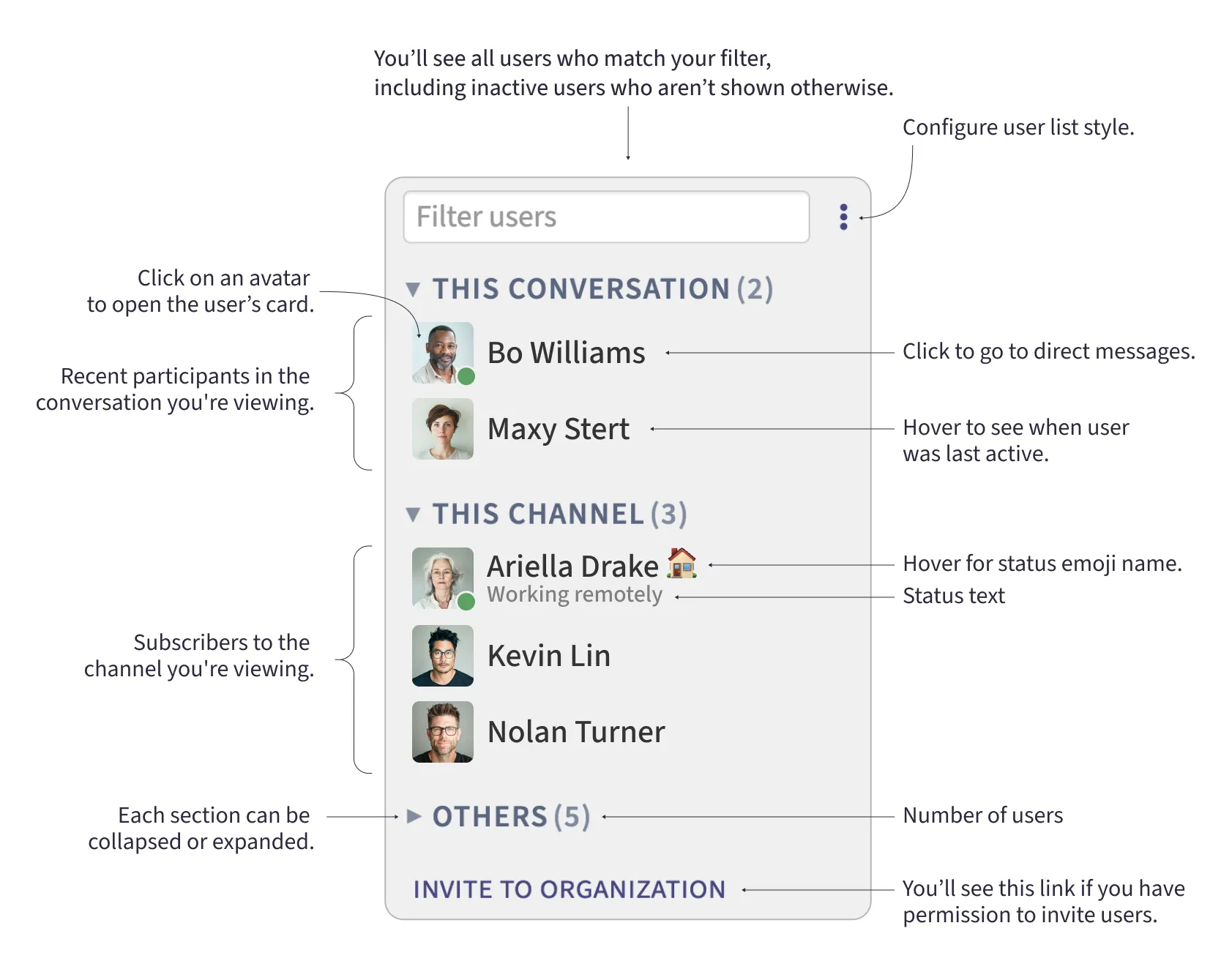
In the Zulip web and desktop app, the right sidebar shows a list of users in your organization. The user list has up to three section:
- This conversation: Recent participants in the conversation you’re viewing.
- This channel: Subscribers to the channel you’re viewing.
- Others: Everyone else.
In organizations with up to 600 users, everyone is shown. In larger organizations, only users who have been active in the last two weeks are shown, but everyone is included when you search. Deactivated users and bots are not listed.
You can choose to have each user’s name appear with their avatar, or select a one of the more compact user list styles. To avoid distraction, you can hide the user list any time.
Here is an overview of all the information and actions you can take in Zulip’s user list.
Filter users
Section titled “Filter usersâ€- If the user list is hidden, click the user list () icon in the upper right to show it.
- Type the name of the user you are looking for in the Filter users box at the top of the right sidebar.
Configure user list style
Section titled “Configure user list styleâ€- If the user list is hidden, click the user list () icon in the upper right to show it.
- Click the ellipsis () to the right of the Filter users box.
- Toggle your preferred option for User list style.
- Go to Preferences.
- Under Information, toggle your preferred option for User list style.
Show or hide the user list
Section titled “Show or hide the user listâ€- Click the user list () icon in the upper right.